JOSM/Plugins/PicLayer
This plugin allows to load pictures and display them as JOSM layer.
Quick animated how-to: Piclayer_usage.gif

General information
Features
- supported formats : PNG, JPEG, GIF
- Easy calibration by moving/rotating/scaling the picture with the mouse
- Loading/saving of the pictures calibration in separate files with .cal extension
Limitations
- No support for (Geo)TIFF
- No georeferencing based on reference points or coordinates (only positioning with the mouse)
- .cal files are projection-specific (.cal files are specific to the JOSM projection that existed when .cal file was saved. If you change JOSM projection, you should save the .cal file again, otherwise the pic will not load in its position next time.)
- Not a full blown orthorectification system (the process of removing the effects of image perspective (tilt) and relief (terrain) effects for the purpose of creating a planimetrically correct image.)[1]
Installation
Use the plugin panel in the preferences of JOSM to install this plugin.
Usage
Loading a picture
- Load some data from the server so that map is visible. E.g., "File >> Download Data"
- (Experience shows that one should now be sure to zoom to the approximate future center of the image you plan to geo-reference. For instance, if you have a picture of a 1 kilometer area, before loading it first zoom in so you are looking at just a 100 meter area. If you don't know the approximate center location, then you can still try your luck...)
- select the menu "Imagery >> More... >> New Picture Layer from File"
- select one or several files
If calibration files (.cal) are available, then will be loaded automatically. If not, the image center will be placed at the current center of the screen, at a scale where it's reasonably visible.
Geo-referencing
- Activate the layer.
- (Tip: At this point be sure to use the buttons on the left panel to first drag, and rotate, and resize (of course always keeping the aspect ratio constant), to loosely match up with the base map before ever touching your first green arrow. -- Do not attempt to fully rotate an upside down picture merely by grabbing points 1, 2, and 3...)
- Click green arrow button at the left toolbar
- Select picture checkpoints (3 checkpoints needed for processing)
- Click red arrow button at the left toolbar
- At this mode you can move checkpoints (you should point exactly in the bubble of the point) and image will transform. Note one can at any time reposition points 1, 2, and 3, by just clicking the green arrow again.
see animation at Piclayer Usage
Saving the cal file
Right click on a layer, "Save picture calibration..."
Calibration files are saved in the same directory where the image was loaded from.
Loading the cal file
It will be loaded automatically when loading the picture based on the file name (picture.png.cal for instance). You can also load a cal file manually with "Load picture calibration..."
Important: the cal file is projection specific, make sure you use the same projection when saving and loading
Loading previous images
Just load them as you would new images that you haven't georeferenced yet. If New Picture Layer from File is greyed out in the menu, then first load some area. [2]
Using auto calibration action

Auto calibration action helps you to position and calibrate an image (preferably a floor plan) into the world map.
What is different from the manual use?
- it's faster
- higher accuracy
How does the action calibrates the image?
After all information has been entered the tool makes sure to keep the passed dimensions and to not distort the image during calibration.
The three local points  will not simply be transformed to the three reference points
  . Instead, the first reference point will be used as anchor what means the first local point will be transformed to the first reference point. After that the second local point needs to be placed on line between reference point 1 and reference point 2 at given distance. The position of the third local point will be calculated by given distance between reference points 2/3 and offset between local and reference points.
What do I need to use this action?
- an image, preferably a floor plan
- information about side length of building
How do I start calibration?
- open the image file and switch to the image layer so you can see the PicLayer modes on the left
- enter the "Auto Calibrate Picture" mode

- follow the window
- select local points

- enter distances - if the text field is selected a green line appears to visualize the required distance. Enter the real distance in meter between the two points.
- open the reference - open a .osm or .gpx file
 with coordinates of building outline or select a layer
  as reference
 - select reference points

- mode selection - if the building outline coordinates are already defined in layer, select defined mode (.osm files only), if you want to set the coordinates somewhere on layer, select manual mode
- select the same points as in step 3.1, now only on the reference layer
- run calibration
- select local points


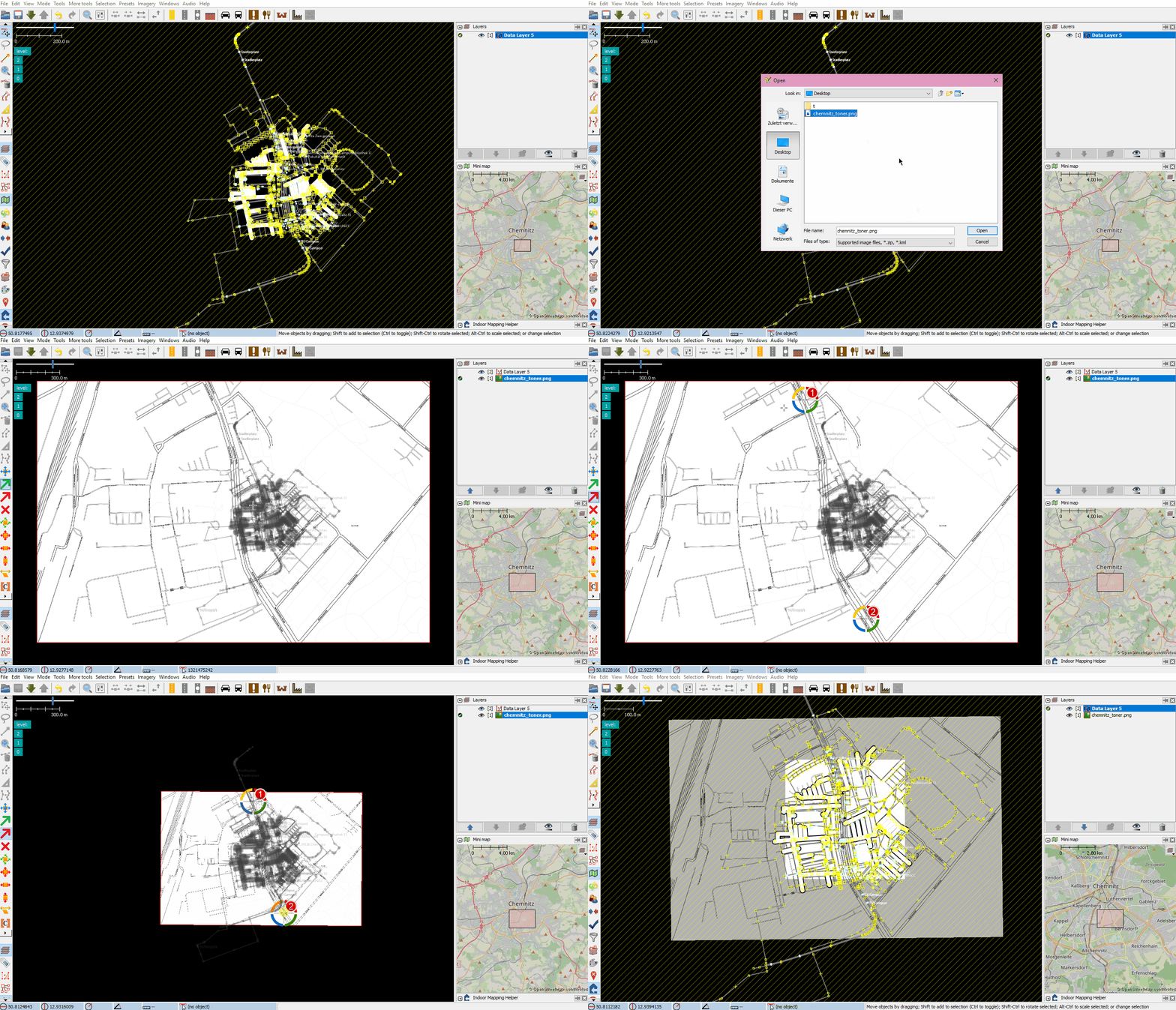
Click to run GIF or see Piclayer_auto_calibration.gif
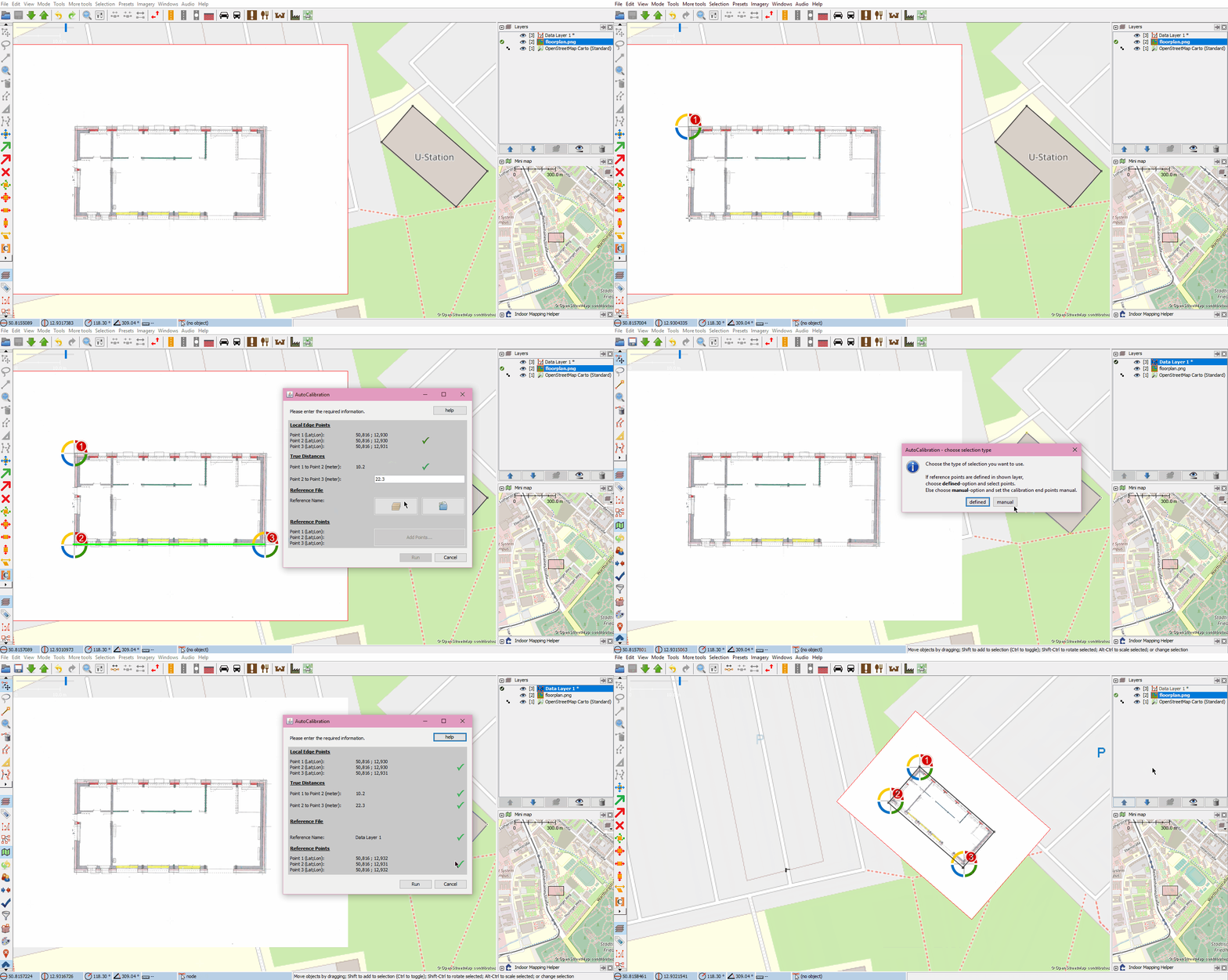

Why using distances to calibrate?
Often the given outline of a building is not accurate enough (e.g. distortions in taken images out of planes). With using the distances the real dimensions can be kept. It also offers the ability to correct the outline.
Error Messages
If dimension of calibrated image doesn't (almost) equals the entered dimensions the calibration will fail to avoid wrong outputs.
History
See JOSM/Plugins/PicLayer/ReleaseNotes
Other links
- https://josm.openstreetmap.de/wiki/Help/Plugin/PicLayer
- JAR files: https://github.com/JOSM/PicLayer/releases
- Code: https://github.com/JOSM/PicLayer
- Open tickets in trac
Annexes
New .cal file format
The following example uses UTM35 projection aka EPSG:32635, POSITION_X=28.8652921°E POSITION_Y=60.4985131°N and Image_Resolution~=0.5 m/pix
#JOSM PicLayer plugin calibration data
#Sun Nov 27 22:21:58 CET 2011
POSITION_Y=6708383.375731533
POSITION_X=602463.1049788792
INITIAL_SCALE=673.3630407396365
M12=-714.691403694874
M11=0.508636037014039
M10=6.263463862108147E-5
M02=43.42632371753174
M01=-2.1720970442278513E-4
M00=0.5060984647587284
- POSITION_X and POSITION_Y: position of the image center in world units (i.e. projection specific) — the same as in old .cal format
- INITIAL_SCALE: equivalence of 100 pixels in world units
- M00, M01, M02 and M10, M11, M12: affine transform coefficients
Mathematical background:

(PX,PY)=POSITION_X/Y, S=INITIAL_SCALE, (x,y)=pixel location relative to the image center. (x',y')=projected coordinates. IGN=ignore.
Technically, INITIAL_SCALE and POSITION_X, POSITION_Y are redundant because they could be merged into M.
Also see http://en.wikipedia.org/wiki/File:2D_affine_transformation_matrix.svg for a graphic help on how M is constituted.

Old .cal file format
Example :
#JOSM PicLayer plugin calibration data
#Mon Nov 15 19:38:35 CET 2010
SCALEX=1.0
SCALEY=1.0
SHEARX=0.0
SHEARY=0.0
INITIAL_SCALE=190.92609423045016
POSITION_Y=292616.03696207993
POSITION_X=490266.6137017577
INITIAL_POS_y=293088.4061731008
INITIAL_POS_X=490909.1888228225
ANGLE=58.77
- INITIAL_SCALE: world meters / 100 pixels at the time you load the image
- SCALE_X/Y: additional scaling done by the user
- SHEAR_X/Y: meaning?
- INITIAL_POS_X/Y: meaning?
- POSITION_X/Y: position of the image center in world units
- ANGLE: 0 means not rotated
About scaling: the size of the image in world meters is: imgsize / 100 * INITIAL_SCALE * SCALE_X/Y
Remember that the cal files are projection specific, but the projection is not stored in the file.
Note: Josm may crash when trying to open a very old cal-file (see ticket 6123 with workaround)
How to convert an old .cal file format to new .cal file format
See the scripts on the German version of this page.
World file
If a world file is present next to an image when opened, it is used to automatically georeference the layer.
The format is a normal .wld file. However the projection (.prj) is not read and need to be set to the same as JOSM (default EPSG:3857).